




Starting a fundraiser with DashPledge #
DashPledge provides a guided process for schools and organizations that want to start a fundraiser.
Organizers do not manually create new campaigns from the Organizer Dashboard.
Instead, you can begin a new fundraiser in one of two ways:
- Choose Start a Fundraiser during DashPledge signup
- Go directly to the Start Fundraising page
From there, you’ll provide information about your organization and proposed fundraiser. After the fundraiser is submitted and approved, DashPledge creates the campaign and makes the appropriate organizer tools available.
1. Start your fundraiser request #
Go to the DashPledge Start Fundraising page.
If you’re creating a new DashPledge account, you can also choose Start a Fundraiser during signup. DashPledge will direct you to the Start Fundraising process.
You do not need access to an Organizer Dashboard before beginning a fundraiser request.
2. Tell us about your organization #
Provide the requested information about the school or organization that will be running the fundraiser.
Make sure the information is accurate because it will be used to review and set up your organization and fundraiser.
If your organization already exists in DashPledge, use the appropriate existing organization information rather than attempting to create duplicate records.
3. Tell us about your fundraiser #
Provide the requested information about the fundraiser you would like to run.
Depending on the fundraiser, this may include information such as:
- Fundraiser name
- School or organization
- Fundraiser type
- Fundraising goal
- Planned start date
- Planned end date
- Fundraiser description
- Purpose of the fundraiser
- Organizer information
Review the information carefully before continuing.
4. Choose your fundraiser type #
Select the type of fundraiser your school or organization wants to run.
DashPledge supports different fundraising experiences, including:
- Read-a-thon
- Move-a-thon – including walk-a-thons, fun runs, jog-a-thons, dance-a-thons, fitness challenges, and other activity-based fundraisers
- STEM fundraiser
- Art fundraiser
- Music fundraiser
- Custom fundraiser
The features available during the campaign depend on the fundraiser type.
For example, a Read-a-thon can include reading-minute tracking, while a Move-a-thon can include movement or activity tracking.
5. Submit your fundraiser request #
When you’ve completed the required information, review the fundraiser request and submit it to DashPledge.
Submitting a fundraiser request does not automatically make the campaign public.
The fundraiser must complete the applicable review and approval process before it becomes an active DashPledge campaign.
6. DashPledge reviews your fundraiser #
DashPledge reviews the submitted fundraiser information before the campaign is approved.
This helps ensure that the fundraiser is associated with the correct organization and configured for the appropriate campaign type.
If additional information or corrections are needed, the fundraiser may require additional review before approval.
7. Your fundraiser is approved and set up #
After approval, DashPledge creates and connects the campaign using the approved fundraiser information.
Depending on the fundraiser type, the campaign can include:
- Main organization fundraising page
- Fundraising goal
- Campaign dates
- Campaign media
- Donation functionality
- Teacher participation
- Student participation
- Parent claiming
- Student fundraising pages
- Activity tracking
- Leaderboards
- Achievements and milestones
- Sharing links and QR codes
Not every campaign uses every feature.
8. Access your Organizer Dashboard #
Once your organization and fundraiser are ready, you can use your DashPledge Organizer Dashboard to manage the approved campaign.
The Organizer Dashboard includes the following main areas:
Dashboard #
View an overview of your organization’s fundraising activity and campaign performance.
My Campaigns #
View and track the fundraisers associated with your organization.
Depending on the campaign, My Campaigns can show information such as:
- Campaign name
- Campaign status
- Campaign dates
- Amount raised
- Fundraising goal
- Fundraising progress
- Number of supporters
- Time remaining
Available actions can include options such as Share and View.
My Campaigns is for accessing and managing existing campaigns. It is not used to create a new fundraiser.
Fundraiser Admin #
Use Fundraiser Admin for organizer-level management of the fundraiser.
Fundraiser Admin includes several areas.
Overview #
View an overall summary of fundraiser participation, activity, and campaign progress.
Fundraiser Participants #
View and manage the participants associated with the fundraiser.
For participating school campaigns, this can include teachers and students connected to the campaign.
Global Leaderboard #
View fundraiser-wide leaderboard information for supported campaign types.
For example, Read-a-thon and Move-a-thon campaigns may use activity-based leaderboard information.
The information displayed depends on the campaign type and privacy settings.
Campaign Settings #
Manage the available settings associated with the fundraiser.
The settings available depend on the campaign type and your organizer permissions.
Donations #
View donation activity associated with your organization’s fundraiser.
This area can help organizers monitor donations and supporter activity.
Payouts #
View available payout information and activity associated with your organization’s connected payout account.
Reports #
Review fundraising reports and campaign performance information.
Settings #
Manage available organization and account settings.
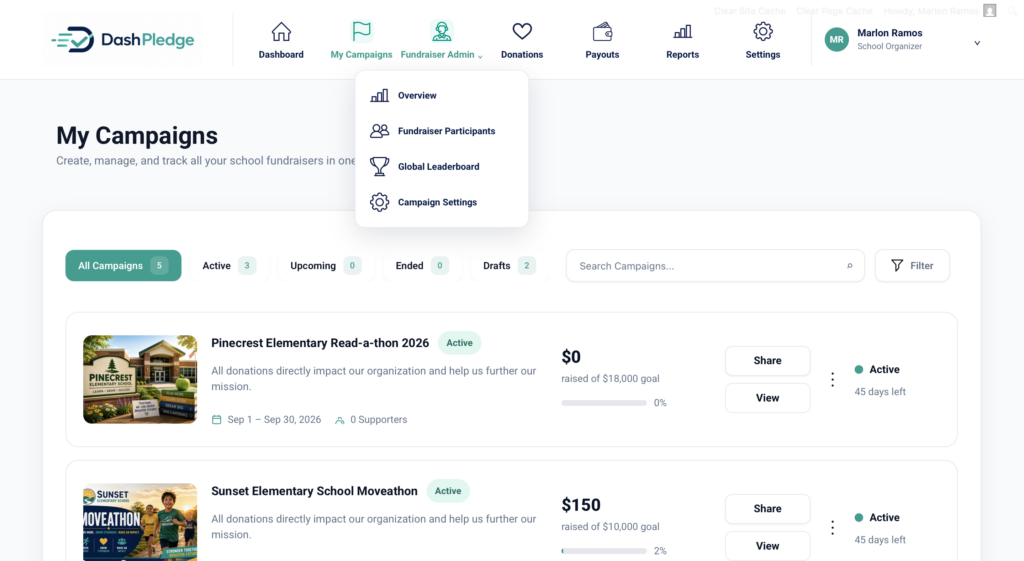
Organizer Dashboard: Access My Campaigns, Fundraiser Admin, Donations, Payouts, Reports, Settings, and other fundraiser management tools after your fundraiser is approved.
What is the difference between My Campaigns and Fundraiser Admin? #
The two areas serve different purposes.
My Campaigns is the organizer’s campaign list. It provides an overview of the fundraisers associated with the organization and access to individual campaigns.
Fundraiser Admin provides the management tools for working with the fundraiser itself, including participants, campaign-wide progress, leaderboards, and campaign settings.
Neither area is used to manually create a new fundraiser.
New fundraisers begin through Start Fundraising.
When does my fundraiser become public? #
Your fundraiser should only be considered public after it has completed the required approval and publishing process.
Submitting a fundraiser request alone does not make it publicly available.
Once the campaign is successfully published, the main fundraising page can be shared with supporters.
What happens with teachers and students? #
For participating school campaigns, teachers and students can be associated with the fundraiser through the campaign roster.
Once the appropriate participant information is available:
- Teachers can connect to their school and classroom
- Teachers can access participating students
- Parents or guardians can claim eligible children
- Claimed student fundraisers can be prepared and published
- Eligible activity can be tracked for supported campaign types
- Student and classroom progress can be monitored
Available features depend on the fundraiser type.
What is the difference between the main fundraiser and a student fundraiser? #
The main fundraiser represents the overall school or organization campaign.
A student fundraiser belongs to an individual participating student and remains connected to the main campaign.
This allows families to share individual student fundraising pages while DashPledge continues to track overall campaign progress for the organization.
What if I want to run a Custom Fundraiser? #
Choose Custom when your fundraiser does not fit one of the available activity-specific campaign types.
Provide the requested fundraiser information during the Start Fundraising process.
The campaign will be configured according to the approved fundraiser setup.
Can my organization have more than one fundraiser? #
Your organization may have multiple fundraiser records over time.
Existing campaigns appear under My Campaigns according to their status and your organizer access.
If you want to start another fundraiser, use the Start Fundraising process again rather than attempting to create a campaign manually from My Campaigns or Fundraiser Admin.
What if I need to change something after submitting? #
If your fundraiser is still being reviewed, follow the available instructions for correcting or updating the request.
If the fundraiser has already been approved, available campaign information can be managed through the appropriate organizer tools.
Some changes may require DashPledge assistance depending on the campaign status and type.
Do not submit a duplicate fundraiser simply to correct an existing request.
What if my fundraiser is still waiting for approval? #
A fundraiser may remain pending while DashPledge reviews the submitted information.
You do not need to submit the same fundraiser again.
If additional information is required, follow the instructions provided by DashPledge.
If you believe the request has been pending unexpectedly, contact DashPledge Support.
What’s next? #
Once your fundraiser has been approved, use My Campaigns and Fundraiser Admin to access and manage it.
Continue with the Fundraisers & Campaigns guides to learn more about:
- Using My Campaigns
- Using Fundraiser Admin
- Managing fundraiser participants
- Understanding the Global Leaderboard
- Managing Campaign Settings
- Tracking campaign progress
- Sharing your main fundraiser
- Managing an active campaign
