




Using My Campaigns #
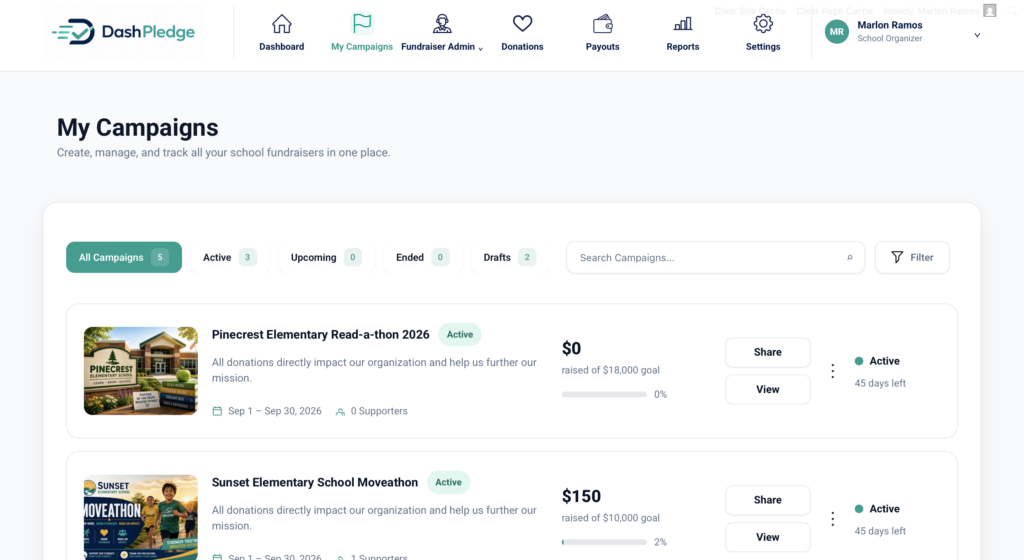
My Campaigns gives organizers a central place to view, track, and access the fundraisers associated with their organization.
Use this page to quickly check campaign status, fundraising progress, campaign dates, supporters, and available campaign actions.
My Campaigns is for managing and accessing existing fundraisers. New fundraiser requests begin through the Start Fundraising process.
Viewing your campaigns #
Sign in to your DashPledge Organizer Dashboard and select My Campaigns from the main navigation.
Your campaigns will appear according to the organization and fundraiser access associated with your account.
Each campaign card can provide important information about the fundraiser.
Understanding a campaign card #
Depending on the fundraiser, a campaign card may display:
- Campaign name
- Fundraiser type
- Campaign image
- Campaign status
- Start and end dates
- Amount raised
- Fundraising goal
- Goal progress
- Number of supporters
- Time remaining
- Available campaign actions
This allows you to review important campaign information without opening each fundraiser individually.
Campaign status filters #
My Campaigns organizes fundraisers by status.
Available filters can include:
All Campaigns #
Shows all campaigns available to your organizer account.
Active #
Shows campaigns that are currently active.
Upcoming #
Shows campaigns scheduled to begin in the future.
Ended #
Shows campaigns that have reached their end status.
Drafts #
Shows campaign records that are not currently published or active.
The number displayed with each filter indicates how many campaigns currently belong to that status.
Searching for a campaign #
Use Search Campaigns when your organization has multiple fundraisers and you want to locate a particular campaign.
Enter part of the campaign name to narrow the results.
Using campaign filters #
Select Filter to use any additional campaign filtering options available on the page.
Filters can help organizers find the fundraiser they need without scrolling through every campaign.
Viewing fundraising progress #
Each campaign can display its current fundraising progress.
Depending on the campaign, you may see:
- Amount raised
- Overall fundraising goal
- Percentage of goal reached
- Progress bar
- Number of supporters
For example, if a campaign has raised $5,000 toward a $10,000 goal, its progress is 50%.
Fundraising totals are based on eligible donation activity associated with the campaign.
Viewing campaign dates #
Campaign cards can display the fundraiser’s start and end dates.
For active campaigns, DashPledge may also show the amount of time remaining.
Campaign dates are important because they can affect fundraiser status, activity eligibility, progress notifications, and campaign deadlines.
Viewing supporters #
When available, the campaign card displays the number of supporters associated with the fundraiser.
Supporter information is based on eligible donation activity and the campaign’s available reporting information.
Sharing a campaign #
Select Share when you want to access the available sharing options for the campaign.
Use the public campaign information provided by DashPledge when sharing the fundraiser with supporters.
Remember that the organization’s main campaign page and individual student fundraising pages serve different purposes.
If you want to share a specific student’s fundraiser, use that student’s individual fundraising link rather than the main campaign link.
Viewing the public campaign #
Select View to open the campaign’s available public fundraising page.
This is useful when you want to:
- Review how the fundraiser appears to supporters
- Verify campaign information
- Check campaign media
- Review fundraising progress
- Confirm the public page is working correctly
After making campaign-related changes, it is a good practice to review the public page.
What is the three-dot menu? #
Some campaign cards may include an additional three-dot action menu.
The actions available there depend on the campaign status and your organizer permissions.
Use only the actions provided for the selected campaign.
Can I create a new fundraiser from My Campaigns? #
No.
My Campaigns is not the starting point for creating a new fundraiser.
To start another fundraiser, use the DashPledge Start Fundraising process.
This ensures the fundraiser goes through the appropriate organization setup, review, approval, and campaign provisioning process.
What is Fundraiser Admin? #
Fundraiser Admin is separate from My Campaigns.
My Campaigns helps you find and access your organization’s campaigns.
Fundraiser Admin provides deeper management tools for the fundraiser, including:
- Overview
- Fundraiser Participants
- Global Leaderboard
- Campaign Settings
Use Fundraiser Admin when you need to work with the participants, activity, leaderboard, or settings associated with a fundraiser.
Why do I see multiple campaigns? #
An organization may have multiple campaign records over time.
For example, your organization may have current, upcoming, ended, or draft campaigns.
Use the campaign status filters and search tools to locate the fundraiser you need.
What if a campaign is missing? #
First, confirm that:
- You’re signed in to the correct organizer account
- You’re associated with the correct organization
- You’re checking the appropriate campaign status
- Your search or filters aren’t hiding the campaign
Clear any search or filtering and check All Campaigns again.
If the fundraiser should be available but still doesn’t appear, visit Troubleshooting or contact DashPledge Support.
What if the amount raised looks incorrect? #
Fundraising totals are based on eligible donations associated with the campaign.
Refresh the page and review the campaign again.
For more detailed donation information, open Donations from your Organizer Dashboard.
If the campaign total and donation information still don’t match as expected, visit Troubleshooting.
What if a campaign shows the wrong status? #
Campaign status can depend on its setup, publishing state, and campaign dates.
If a fundraiser appears under the wrong status and you believe its campaign information is correct, contact DashPledge Support rather than creating a duplicate campaign.
What’s next? #
For deeper campaign management, continue with the Fundraiser Admin guides.
There you’ll learn how to use:
- Fundraiser Admin Overview
- Fundraiser Participants
- Global Leaderboard
- Campaign Settings
