




Signing in to DashPledge #
Sign in to DashPledge to access the dashboard and tools associated with your account.
The dashboard you see after signing in depends on your DashPledge role and the school, organization, or fundraiser connected to your account.
How to sign in #
Go to the DashPledge login page.
Enter the email address and password associated with your DashPledge account, then select Log In.
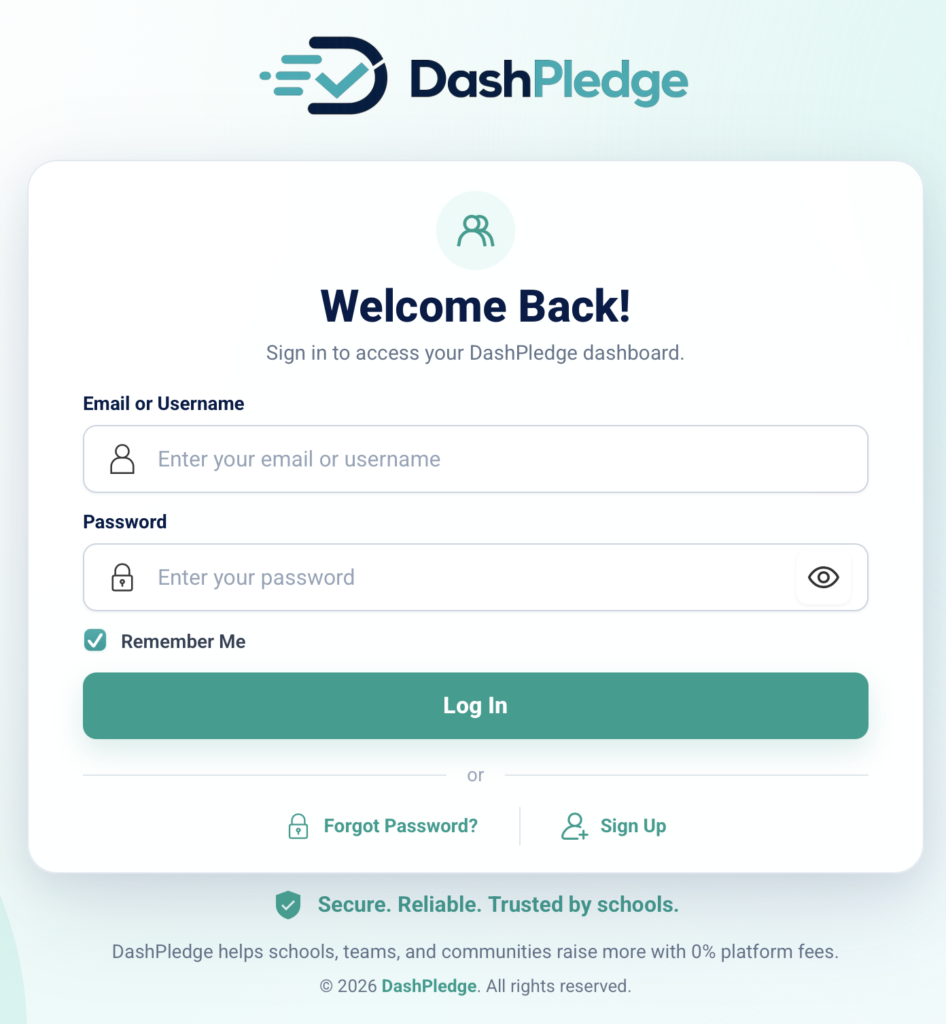
After a successful login, DashPledge will direct you to the appropriate account experience.
Which email address should I use? #
Use the email address you used when creating your DashPledge account.
If you’ve participated in DashPledge before, try to use your existing account rather than creating another account with a different email address.
Using one account helps keep your fundraiser relationships and participating children connected correctly.
Where will I go after signing in? #
DashPledge directs users to the appropriate dashboard based on their role.
Organizers #
Organizers can access areas such as:
- Dashboard
- My Campaigns
- Fundraiser Admin
- Donations
- Payouts
- Reports
- Settings
Teachers #
Teachers can access their Teacher Dashboard and available classroom tools, including participating students, activity tracking, progress, and leaderboards.
Parents and guardians #
Parents and guardians can access participating children connected to their account, manage available fundraiser information, track progress, log eligible activity, and use sharing tools.
The exact features available depend on your account and fundraiser.
Why does my dashboard look different from someone else’s? #
DashPledge uses role-based access.
An organizer, teacher, and parent should not necessarily see the same dashboard or navigation.
For example, teachers can access classroom tools, while organizers have campaign-management, donation, reporting, and payout tools.
This helps ensure users only have access to the information and actions appropriate for their role.
What if I forgot my password? #
Use the available Forgot Password or password-reset option from the DashPledge login page.
Enter the email address associated with your account and follow the instructions provided.
Do not create another DashPledge account simply because you forgot your password.
I requested a password reset but didn’t receive the email #
Check:
- Your inbox
- Spam folder
- Junk folder
- Promotions or other filtered folders
Make sure you’re checking the email address associated with your DashPledge account.
Allow a short period for the message to arrive before requesting another reset.
If you still don’t receive it, contact DashPledge Support.
What if DashPledge says my password is incorrect? #
First, make sure:
- You’re using the correct email address
- Caps Lock isn’t affecting the password
- Your browser isn’t automatically filling an old password
If you’re still unable to sign in, use the password-reset option rather than repeatedly guessing your password.
What if I don’t remember which email I used? #
Think about the email address you used when you originally joined DashPledge.
For parents, this may be the email used during the child-claiming process.
For teachers or organizers, it may be the email associated with your school or organization account.
If you still cannot identify the account, contact DashPledge Support.
Do not create multiple accounts just to test different email addresses.
What if I accidentally created two accounts? #
Avoid continuing to use both accounts independently.
Duplicate accounts can make it harder to manage:
- Participating children
- School relationships
- Teacher relationships
- Organizer access
- Fundraiser access
Contact DashPledge Support so the account relationships can be reviewed.
I signed in, but my child is missing #
First, make sure you’re using the same parent or guardian account that was used to claim the child.
If you have more than one participating child, review the children connected to your account.
If the child still doesn’t appear, visit Parents & Students → What to Do If You Can’t Find or Claim Your Child.
Do not create another child or another parent account.
I signed in, but my students are missing #
If you’re a teacher, confirm that:
- You’re using the correct teacher account
- You’re connected to the correct school
- You’re associated with the correct fundraiser
If your Teacher Dashboard still doesn’t show the expected students, visit Teachers & Classrooms or Troubleshooting.
I signed in, but my campaign is missing #
If you’re an organizer, open My Campaigns and check:
- All Campaigns
- Active
- Upcoming
- Ended
- Drafts
Clear any search or filters that could be hiding the campaign.
Also confirm that you’re signed in to the organizer account associated with the correct organization.
I signed in but see the wrong dashboard #
If you believe DashPledge has assigned the wrong role or dashboard to your account, don’t create another account to try to correct it.
Sign out and verify that you’re using the correct account.
If the wrong dashboard continues to appear, contact DashPledge Support so your account access can be reviewed.
Can one account have more than one child? #
Yes.
A parent or guardian can manage multiple eligible participating children from the same DashPledge account.
You generally don’t need a separate account for each child.
Can one person have more than one DashPledge role? #
In some situations, an account may have access associated with more than one DashPledge responsibility.
The available dashboard and permissions depend on how the account is configured.
If you believe you’re missing access associated with one of your responsibilities, contact DashPledge Support rather than creating a duplicate account.
Should I share my DashPledge login? #
No.
Each authorized user should use the account intended for them.
Do not share your DashPledge password with other parents, students, teachers, donors, or unauthorized users.
How can I keep my account secure? #
Use a password that isn’t easy to guess and avoid reusing credentials that have been exposed elsewhere.
Never send your DashPledge password through:
- Donor messages
- Fundraiser pages
- Chat
- Ordinary support requests
DashPledge Support should not need your password to help troubleshoot your account.
What if I still can’t sign in? #
Before contacting Support, try:
- Confirming your email address.
- Checking that your password is entered correctly.
- Using the password-reset option.
- Checking your email and spam folders for the reset message.
- Trying the login again after resetting your password.
If you still cannot access the account, contact DashPledge Support and provide your email address and a description of the problem.
Do not send your password.
What’s next? #
Continue with the Accounts & Login guides to learn about:
- Resetting your password
- Updating your account information
- What to do if you can’t access your account
- Duplicate accounts
- Understanding account roles and access
For an overview of DashPledge roles, see Understanding DashPledge User Roles under Getting Started.
