




Using Fundraiser Admin #
Fundraiser Admin gives authorized organizers access to the tools used to manage participation, campaign activity, leaderboards, and settings for a DashPledge fundraiser.
It is separate from My Campaigns.
My Campaigns helps you find, view, track, and share your organization’s campaigns. Fundraiser Admin provides deeper management tools for working with the fundraiser.
How to open Fundraiser Admin #
Sign in to your DashPledge Organizer Dashboard.
From the main navigation, select Fundraiser Admin.
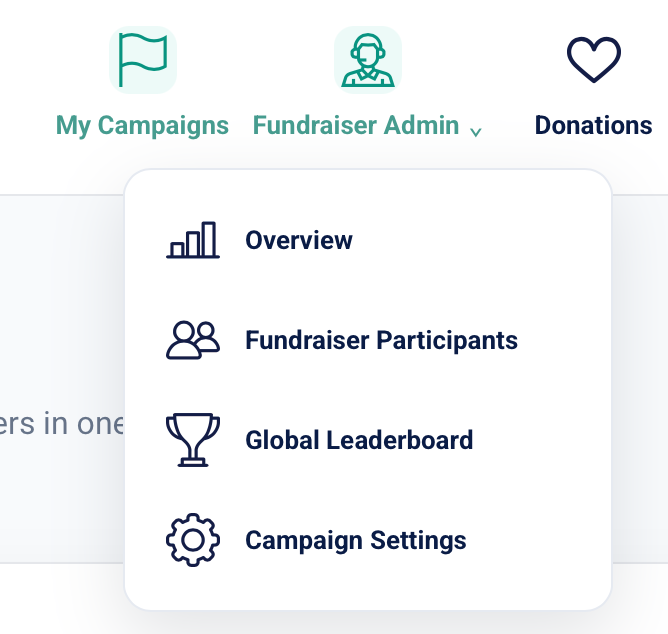
The Fundraiser Admin menu includes:
- Overview
- Fundraiser Participants
- Global Leaderboard
- Campaign Settings
Select the area you want to manage.
Overview #
Select Overview for a high-level view of the fundraiser.
The overview can help you monitor the campaign without opening each management area individually.
Depending on the campaign type, information may include:
- Fundraiser progress
- Participant information
- Activity progress
- Fundraising totals
- Campaign status
- Recent campaign activity
The information available depends on the fundraiser.
Fundraiser Participants #
Select Fundraiser Participants to work with the people participating in the fundraiser.
For school campaigns, this can include participating:
- Teachers
- Students
- Classrooms
Participant information is connected to the fundraiser roster and campaign relationships.
Use this area when you need to review who is participating in the campaign.
Understanding claimed and unclaimed students #
Students can be part of the fundraiser roster before a parent or guardian claims them.
A student’s claim status helps indicate whether the child has been connected to a parent or guardian account.
Claimed #
A claimed student has been successfully connected to an eligible parent or guardian account.
Depending on the campaign, the family can then prepare, publish, and share the student’s individual fundraiser.
Unclaimed #
An unclaimed student exists in the fundraiser roster but hasn’t yet been connected to a parent or guardian account.
Do not create another copy of an unclaimed student simply because the child hasn’t been claimed yet.
Global Leaderboard #
Select Global Leaderboard to view fundraiser-wide leaderboard information for supported campaigns.
The leaderboard can help organizers monitor participation across the campaign.
For example:
Read-a-thon #
Leaderboard information may reflect eligible reading activity, such as reading minutes.
Move-a-thon #
Leaderboard information may reflect the movement or activity measurement configured for the campaign.
The exact leaderboard measurement depends on the campaign type and settings.
Campaign Settings #
Select Campaign Settings to manage available settings for the fundraiser.
Campaign settings can control how certain campaign features behave.
The options available depend on the fundraiser type and organizer permissions.
Review settings carefully before making changes because they can affect the participant and public fundraiser experience.
Is Fundraiser Admin where I create a fundraiser? #
No.
Fundraiser Admin is for managing a fundraiser that has already been created and associated with your organization.
To start a new fundraiser, use the Start Fundraising process.
A new fundraiser should go through the appropriate submission, review, approval, and setup workflow.
What is the difference between Fundraiser Admin and My Campaigns? #
Think of the two areas this way:
My Campaigns helps you answer:
- What campaigns does my organization have?
- Which campaigns are active?
- How much has each campaign raised?
- When does a campaign start or end?
- How do I view or share a campaign?
Fundraiser Admin helps you answer:
- Who is participating?
- How is the fundraiser progressing?
- What does the fundraiser-wide leaderboard show?
- What campaign settings are available?
Both are organizer tools, but they serve different purposes.
Does Fundraiser Admin manage donations? #
Detailed donation management is available through Donations in the Organizer Dashboard.
Fundraiser Admin can use fundraising progress as part of campaign management, but the Donations area is the primary place for reviewing donation activity.
Does Fundraiser Admin manage payouts? #
No.
Use Payouts from the Organizer Dashboard for payout-related information.
Keeping campaign participation, donations, and payouts in their appropriate areas helps make the organizer dashboard easier to manage.
Can teachers access Fundraiser Admin? #
Fundraiser Admin is intended for authorized organizer-level campaign management.
Teachers use their Teacher Dashboard and classroom tools to work with assigned students and classroom participation.
The information and actions available to each user depend on their DashPledge role and permissions.
Can parents access Fundraiser Admin? #
No.
Parents and guardians use their Parent Dashboard to manage participating children and their individual fundraising experience.
Organizer-level campaign management remains separate from parent access.
Why don’t I see the same options for every fundraiser? #
Available Fundraiser Admin features can depend on the campaign type.
For example, a Read-a-thon can include reading-related participation features, while a Move-a-thon can use movement-related activity.
A Custom fundraiser may not require the same activity tools.
DashPledge displays the features relevant to the fundraiser.
What if participant information looks incorrect? #
Do not create duplicate teachers or students to try to correct the problem.
First, confirm that you’re working with the correct fundraiser.
If a participant is missing, incorrectly assigned, or duplicated, use the appropriate participant-management tools when available or contact DashPledge Support.
Accurate participant relationships are important because they can affect:
- Parent claiming
- Student fundraisers
- Activity tracking
- Classroom progress
- Leaderboards
- Achievements
- Reporting
What if the leaderboard looks incorrect? #
First, review the underlying activity associated with the campaign.
For activity-based fundraisers, verify that eligible activity has been recorded for the correct students and dates.
Do not manually create activity simply to change a leaderboard position.
If the underlying information is correct but the leaderboard still appears incorrect, visit Troubleshooting.
Protecting participant information #
Fundraiser Admin may contain information that isn’t intended for public display.
Use participant information only for appropriate fundraiser-management purposes.
Public student information should follow the campaign’s privacy settings.
Visit Privacy & Security for additional information.
What’s next? #
For detailed instructions about each Fundraiser Admin area, continue with:
- How to Manage Fundraiser Participants
- How the Global Leaderboard Works
- How to Use Campaign Settings
