




Connecting Stripe to DashPledge #
DashPledge uses Stripe to process eligible fundraiser payments and send fundraiser proceeds to your organization’s connected bank account.
Stripe connection and payout configuration are managed from:
Settings → Payout Setup
From Payout Setup, authorized organizers can review balances, manage their Stripe connection, access bank-account settings, review the payout schedule, and see recent payouts.
How to open Payout Setup #
Sign in to your DashPledge Organizer Dashboard.
Then:
- Select Settings from the main navigation.
- Select Payout Setup.
- Review your organization’s current payout and Stripe status.
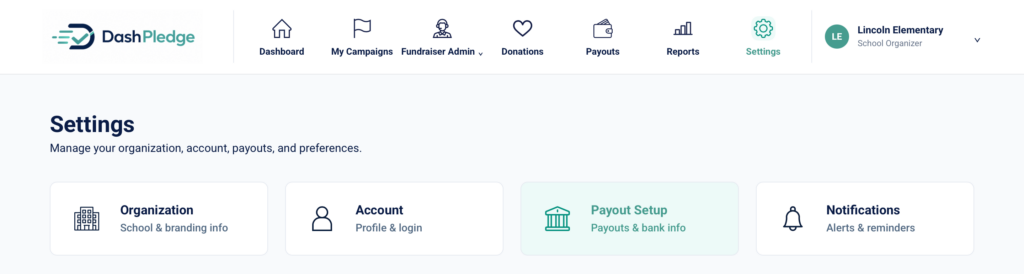
The Payout Setup page is the main location for managing your organization’s Stripe connection and payout configuration.
Understanding the Payout Setup summary #
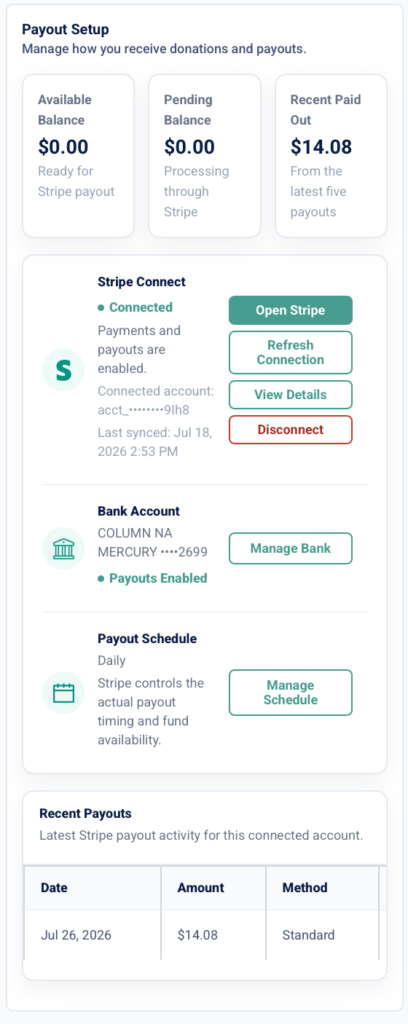
At the top of Payout Setup, DashPledge provides a summary of your organization’s payout information.
This can include:
Available Balance #
Available Balance shows funds that are currently available for Stripe payout.
A donation does not necessarily become available immediately after the donor completes the payment.
Stripe determines fund availability according to the applicable transaction and account conditions.
Pending Balance #
Pending Balance shows funds that are still processing through Stripe and are not yet available for payout.
Pending funds can become available after the applicable processing period.
Recent Paid Out #
Recent Paid Out provides a summary of recent payout activity.
Use the Recent Payouts section farther down the page when you need individual payout details.
Connecting Stripe #
If your organization has not yet connected Stripe, use the available Stripe connection option from Payout Setup.
Follow the secure Stripe onboarding process to provide the information required for your organization.
The exact information requested is determined by Stripe and can vary depending on the connected account.
Who should complete Stripe setup? #
An authorized representative of the school or organization should complete the Stripe connection.
The person completing Stripe onboarding should be authorized to provide the organization and financial information requested by Stripe.
Parents, teachers, and students do not need individual Stripe payout accounts simply because they participate in a fundraiser.
Stripe Connect status #
The Stripe Connect section shows the current status of your organization’s Stripe connection.
When the account is successfully connected and eligible, DashPledge can display a status such as:
Connected
and indicate that payments and payouts are enabled.
The page can also display information about the connected Stripe account and when DashPledge last synchronized the connection.
Open Stripe #
Select Open Stripe to access the Stripe experience associated with your organization’s connected account.
Stripe can provide additional information about areas such as:
- Account requirements
- Payments
- Balances
- Payouts
- Verification
- Banking information
Use Stripe’s secure interface for sensitive financial-account management.
Refresh Connection #
Select Refresh Connection when you need DashPledge to refresh the current Stripe connection information.
This can be useful after completing a Stripe requirement or making an appropriate account change.
Refreshing the connection does not create a new Stripe account.
View Details #
Select View Details to review the available information about the organization’s connected Stripe account.
Use this when you want additional connection information without disconnecting the account.
Disconnect #
The Disconnect action removes the existing Stripe connection from DashPledge.
Use this action carefully.
Disconnecting Stripe can affect the organization’s ability to process payments or receive payouts.
Do not disconnect Stripe as a general troubleshooting step.
If you’re unsure whether the connection should be removed, contact DashPledge Support first.
Managing your bank account #
The Bank Account section displays the payout account currently associated with the connected Stripe account.
For security, DashPledge should display only limited bank-account information rather than the complete account number.
When payouts are enabled, the page can show:
Payouts Enabled
Manage Bank #
Select Manage Bank when you need to manage the bank account associated with Stripe payouts.
Sensitive banking information should be entered only through the secure account-management experience provided for the connected account.
Never send complete bank-account credentials through ordinary email, chat, or DashPledge support messages.
Understanding the payout schedule #
The Payout Schedule section shows the payout schedule currently associated with the connected Stripe account.
For example, your account may show:
Daily
The schedule shown here represents the connected account’s configured payout schedule.
Manage Schedule #
Select Manage Schedule to access the available payout-schedule controls.
Stripe controls the actual payout timing and fund availability.
This means the configured schedule does not guarantee that every newly received donation will be deposited immediately.
Funds must first become available according to Stripe’s processing rules.
Does DashPledge always pay out on Friday? #
No fixed day should be assumed for every organization.
Your payout schedule is based on the configuration associated with your connected Stripe account.
Check:
Settings → Payout Setup → Payout Schedule
to see the schedule currently associated with your organization.
Stripe ultimately controls actual payout timing and fund availability.
Viewing recent payouts #
The Recent Payouts section shows recent Stripe payout activity for the connected account.
Available information can include:
- Date
- Amount
- Method
This helps organizers confirm when recent payouts were processed.
What does Standard mean? #
A payout method shown as Standard indicates the applicable standard Stripe payout method for that payout.
The availability of other payout options depends on Stripe and the connected account.
How do fundraiser donations reach this account? #
Eligible donations made through the organization’s DashPledge fundraiser are processed through the connected payment infrastructure.
This includes donations made through:
- The organization’s main campaign page
- A participating student’s mini-fundraiser page
A student mini-fundraiser does not have a separate student payout account.
Do students receive fundraiser payouts? #
No.
Student mini-fundraisers are connected to the school’s or organization’s overall campaign.
A donation made through a student’s mini-fundraiser can contribute to that student’s fundraising progress, but the money is not paid directly to the student.
Eligible fundraiser proceeds remain associated with the organization and its connected payout account.
Do parents need Stripe accounts? #
No.
Parents and guardians do not need their own Stripe payout accounts to manage their child’s DashPledge fundraiser.
Their child’s fundraiser remains connected to the organization’s campaign and payout structure.
Do teachers need Stripe accounts? #
No.
Teachers use their DashPledge Teacher Dashboard and classroom tools.
They do not need individual Stripe payout accounts for ordinary participation in a school fundraiser.
Why is Stripe asking for additional information? #
Stripe may require additional information to verify the organization, authorized representatives, banking information, or other account details.
These requirements can affect whether payments or payouts remain enabled.
Follow the instructions displayed through the secure Stripe experience.
Can I skip a Stripe requirement? #
Required Stripe verification cannot be bypassed through DashPledge.
If Stripe requires additional information before enabling or continuing payment or payout functionality, an authorized organization representative should complete the requirement.
What if I update something in Stripe? #
After making an appropriate change in Stripe, return to:
Settings → Payout Setup
and use Refresh Connection when necessary to refresh the account information displayed by DashPledge.
Then confirm that the expected connection and payout status appears.
What if Stripe says Connected but payouts aren’t enabled? #
Review the Stripe account for outstanding requirements.
A connected account can still require additional information before all payment or payout functionality is available.
Check the account through Open Stripe and follow any requirements shown there.
What if my bank account is wrong? #
Use Manage Bank to access the appropriate secure banking-management experience.
Do not email bank credentials to DashPledge Support.
If you’re unsure how to change the account safely, contact Support for navigation assistance without providing sensitive credentials.
Will connecting Stripe immediately send money to my bank? #
Not necessarily.
Connecting Stripe establishes the organization’s payment and payout relationship.
A payout still depends on factors such as:
- Successful fundraiser donations
- Fund availability
- Stripe processing
- Connected-account status
- Payout schedule
- Refunds or disputes
- Outstanding Stripe requirements
Protecting your financial information #
Never send the following through ordinary DashPledge support messages:
- Online banking passwords
- Stripe passwords
- Full payment card numbers
- Card security codes
- Complete bank-account credentials
- Other financial-account passwords
Use the secure Stripe and banking-management experiences for sensitive financial information.
What if I need help? #
If the Stripe connection or payout information doesn’t look correct, first review:
Settings → Payout Setup
Check:
- Available Balance
- Pending Balance
- Stripe Connect status
- Bank Account status
- Payout Schedule
- Recent Payouts
You can also use Open Stripe to check for account requirements.
If the problem remains, contact DashPledge Support.
What’s next? #
Continue with the Payouts & Stripe guides to learn about:
- How DashPledge payouts work
- Available and pending balances
- Payout schedules
- Using Open Stripe
- Stripe verification requirements
- Troubleshooting payout problems
