




Resetting your DashPledge password #
If you forget your DashPledge password or can no longer sign in, use the password-reset option to create a new password for your existing account.
You normally do not need to create another DashPledge account because you forgot your password.
Keeping your existing account is important because it may already be connected to your organization, classroom, participating children, or fundraiser.
1. Open the DashPledge login page #
Go to the DashPledge login page.
Select the available Forgot Password or password-reset option.
2. Enter your email address #
Enter the email address associated with your DashPledge account.
Use the same email address you originally used to create or access your account.
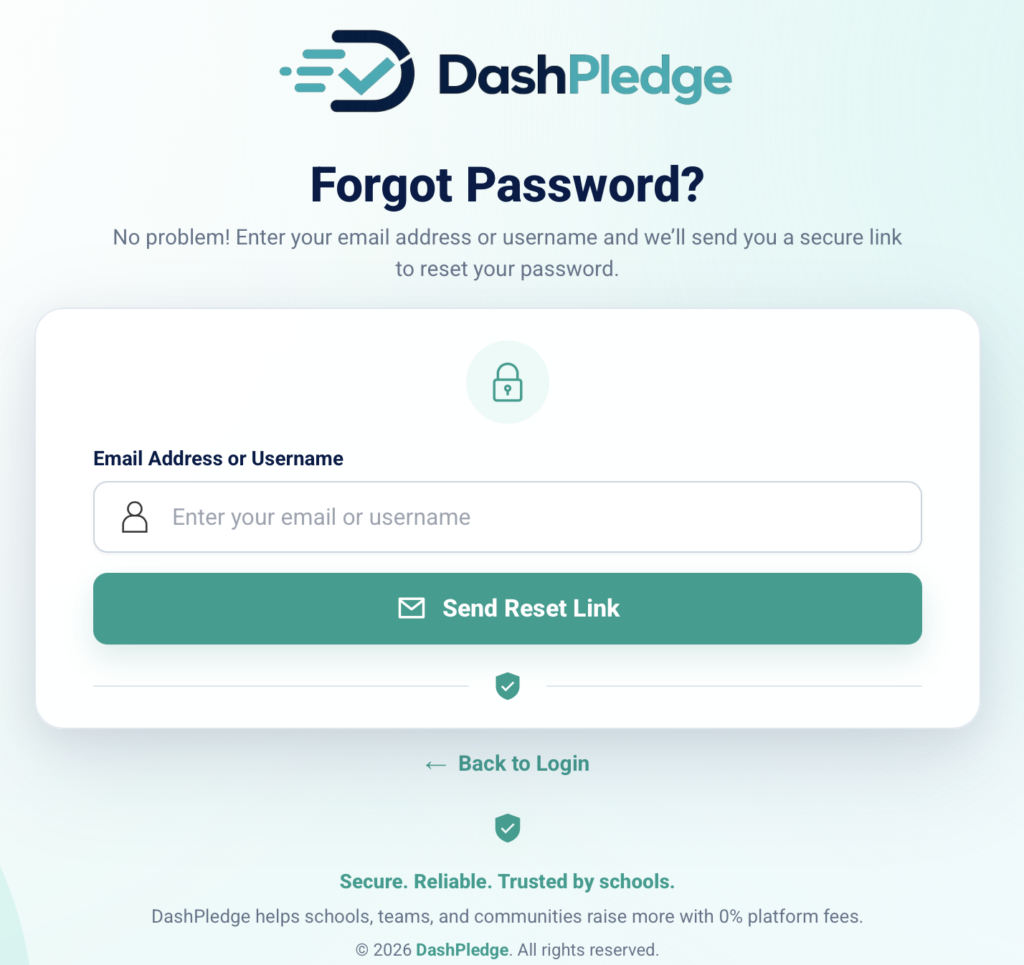
Then submit the password-reset request.
3. Check your email #
DashPledge will send the applicable password-reset instructions to the email address associated with your account.
Open the message and follow the password-reset instructions.
I don’t see the password-reset email #
If the message doesn’t appear in your inbox, check:
- Spam
- Junk
- Promotions
- Other filtered folders
Allow a short period for the message to arrive before requesting another reset.
4. Open the password-reset link #
Use the password-reset link provided in the email.
For security, password-reset links may only remain valid for a limited period.
If the link has expired or no longer works, return to the login page and request another password reset.
5. Create a new password #
Enter a new password when prompted.
Choose a password that is difficult for someone else to guess.
Avoid using information such as:
- Your name
- Your child’s name
- School name
- Simple number sequences
- Common passwords
It’s also a good idea not to reuse a password that you use for other important accounts.
6. Sign in with your new password #
After successfully resetting the password, return to the DashPledge login page.
Enter your account email and new password.
After signing in, DashPledge should direct you to the dashboard associated with your account.
What if DashPledge says my email isn’t recognized? #
First, check the email address carefully for spelling errors.
If you’ve used DashPledge before, consider whether you registered with another email address.
Do not immediately create another account.
If you still can’t identify the correct account, contact DashPledge Support.
What if I no longer have access to my email? #
If you cannot access the email address associated with your DashPledge account, the normal password-reset process may not work.
Contact DashPledge Support so the account-access issue can be reviewed.
For security, you may be asked for information that helps verify the account relationship before account access can be changed.
Never send your existing password or sensitive payment credentials.
What if the reset link doesn’t work? #
Possible reasons include:
- The link has expired
- The link was already used
- A newer password-reset request replaced the earlier one
- The link wasn’t copied completely
Return to the DashPledge login page and request a new password-reset email.
Use the most recent reset message you receive.
What if I requested several reset emails? #
Use the most recent password-reset email.
Older reset links may no longer work after a newer request is generated.
Avoid repeatedly requesting resets once you’ve received a valid email.
What if I reset my password but still can’t sign in? #
Make sure you’re entering:
- The correct account email
- The new password
- No accidental spaces before or after your credentials
Also check whether your browser is automatically filling an older saved password.
Try entering the new password manually.
If you still cannot sign in, contact DashPledge Support.
Will resetting my password remove my children? #
No.
Resetting your password changes your account credentials. It should not remove participating children already connected to your parent or guardian account.
After signing back in, your existing account relationships should remain available.
Will resetting my password remove my students? #
No.
If you’re a teacher, resetting your password should not change the school, campaign, or student relationships already associated with your teacher account.
Will resetting my password remove my campaigns? #
No.
If you’re an organizer, a password reset should not delete or recreate campaigns associated with your organization.
Sign back into the same organizer account to access your existing campaign tools.
Will resetting my DashPledge password change my Stripe password? #
No.
Your DashPledge account and your connected Stripe account have separate authentication.
Changing your DashPledge password does not change your Stripe credentials.
Never send either password to DashPledge Support.
Should I create a new account instead? #
Usually, no.
Creating another account can cause confusion with existing:
- Child claims
- Teacher relationships
- Organization access
- Campaign access
- User roles
Use password recovery to regain access to the existing account whenever possible.
How can I protect my account? #
Keep your DashPledge password private.
Never share it through:
- Chat
- Donor comments
- Fundraising pages
- Ordinary support requests
If you believe someone else may know your password, reset it promptly.
Will DashPledge Support ask for my password? #
No.
You should never need to provide your DashPledge password to Support.
Support may ask for information such as your account email or a description of the problem, but you should not send your password.
What if I still need help? #
When contacting DashPledge Support about password access, provide information such as:
- Email address associated with the account
- Your DashPledge role
- A description of what happens when you try to sign in
- Any error message shown
Do not include your password.
What’s next? #
For related account help, see:
- How to Sign In to DashPledge
- What to Do If You Can’t Access Your Account
- How to Update Your DashPledge Account Information
- What to Do If You Have Duplicate Accounts
